
Recurring maintenance visits are one of the most repeatable pieces of field service work — quarterly inspections, annual equipment tune-ups, monthly facilities checks — and one of the most frustrating to manage across separate scheduling and billing tools. Every visit has to be created, every technician has to be assigned and every invoice has to be raised in the right period. Doing that outside the ERP produces friction between dispatch and accounting that a single record inside Acumatica can eliminate.
The Acumatica consulting team at SWK Technologies has put together a walkthrough of how to set up a field service maintenance contract in Acumatica Cloud ERP — from the customer commitment on paper to the recurring appointments on a technician’s calendar and the invoice on the customer’s account. Continue reading below for the step-by-step of setting up a service contract with quarterly visits and an annual billing cycle, using the same example a maintenance-focused business would run in production:
Why Use Field Service Contracts in Acumatica
A service contract in Acumatica generally ties three things together on one record:
- The customer commitment (what work is included, over what date range)
- The recurrence pattern that produces the technician visits
- The billing cycle that produces the invoices
The record lives under the Equipment module of Acumatica Service Management, though equipment records themselves are optional — a contract can reference specific equipment at a customer site if the business tracks that detail or work without it entirely.
A contract can invoice per visit for time-and-materials work, invoice at the beginning of the period for a customer prepaying for the year or invoice at the end of the period with add-ons for anything performed outside the base scope. Contracts also integrate with the deferred revenue functionality, so a full year billed upfront can be recognized as revenue across the twelve months the work is delivered rather than posted in one hit.
Creating a Maintenance Service Contract in Acumatica
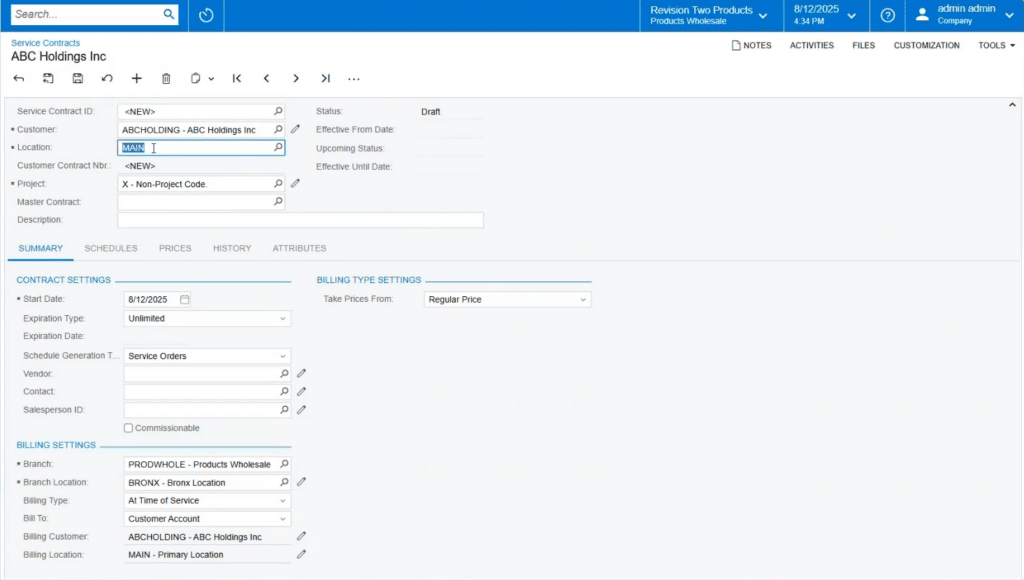
A new contract starts from the Service Contracts screen under the Equipment module. Clicking the plus sign opens a blank record. The customer example used in this walkthrough is a business called ABC Holdings, committing to an annual maintenance program with quarterly technician visits and a single upfront invoice.
Contract Header
The header captures who the contract is with, where it applies and when it runs. Customer, location and a descriptive name go at the top — “Annual Maintenance Contract” for this example. The effective date range covers the twelve months of the arrangement or can be left non-expiring for an evergreen relationship. Two fields on the header shape everything downstream: the schedule generation type, which decides whether the recurrence produces service orders (invoiced individually) or appointments (dispatched directly to a technician’s calendar) and the branch that owns the work.
Billing Terms and Services for Period
Billing lives on its own tab. For a prepaid annual arrangement, the billing period is set to Beginning of the Period, which produces a single invoice at the contract start. The Services for Period tab defines what the invoice covers — in this case, one line for annual maintenance at $750. Contracts with multiple charges break out onto multiple lines. The Deferral Code field ties each line to a revenue recognition schedule, so the $750 collected in month one is recognized across all twelve months of delivery.
Defining the Appointment Schedule
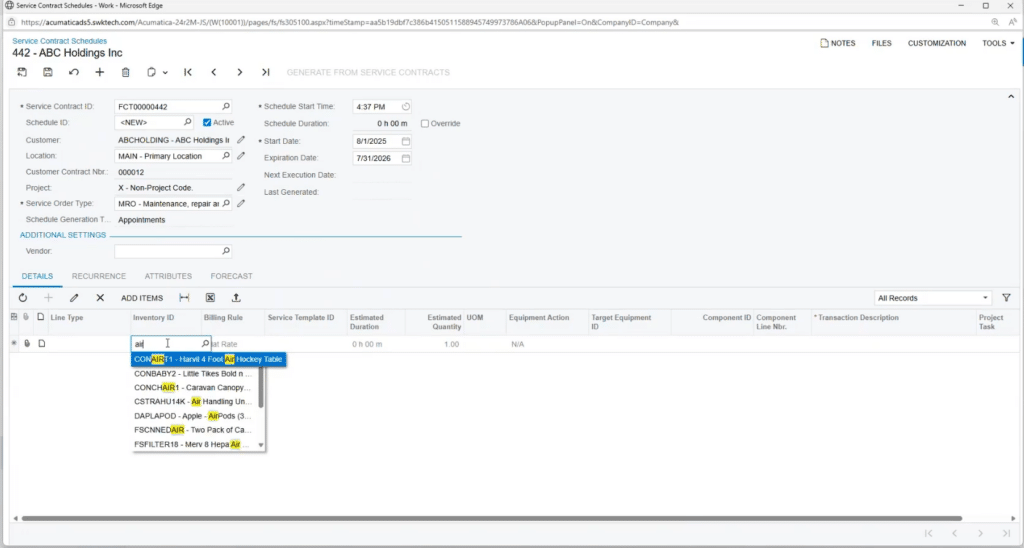
With the commercial terms saved, the Schedules tab is where the technician visits get defined. Clicking Add Schedule opens a new window with three tabs that matter: 1) Details, 2) Recurrence and 3) Forecast.
Service Details
The Details tab tells Acumatica what work each visit involves. The service code entered here does not have to match the code used for billing — the billing code is about revenue and the schedule code is about what the technician is scheduled to do. A maintenance contract might bill against one code and dispatch against a different one (“Air Conditioning Cleaning,” for example). The same tab also carries optional fields for equipment records, parts and inventory items the technician needs to bring along.
Recurrence Options
The Recurrence tab controls the pattern. Acumatica supports daily, weekly, monthly and yearly recurrences, with interval and day-of controls on top. Quarterly visits can be built as a monthly recurrence with an interval of three, set to recur on a specific day of the month or as a yearly recurrence with multiple specific months selected.
Forecast
The Forecast tab shows the actual dates that a recurrence configuration will fall on. For example, a schedule that started in August 2025 and repeated every three months on the second Tuesday, the four dates would be August 12, November 11, February 10 and May 12. Confirming the dates on the forecast tab before activation avoids surprises later.
Generating and Dispatching Appointments
A newly saved contract sits in Draft status. Clicking Activate flips it to Active and unlocks appointment generation.
Generating Appointments
Activation on its own does not create appointments — Acumatica waits for an explicit generation step. Two paths do the same job. Generate from Service Contracts on the schedule record creates appointments for a single contract through a chosen end date. The processing screen can be set to run on a schedule, so that if your business generates at least a month of appointments at a time you can just automate this step and always have next month’s visits ready before the dispatcher opens the calendar.
Dispatching from the Calendar Board
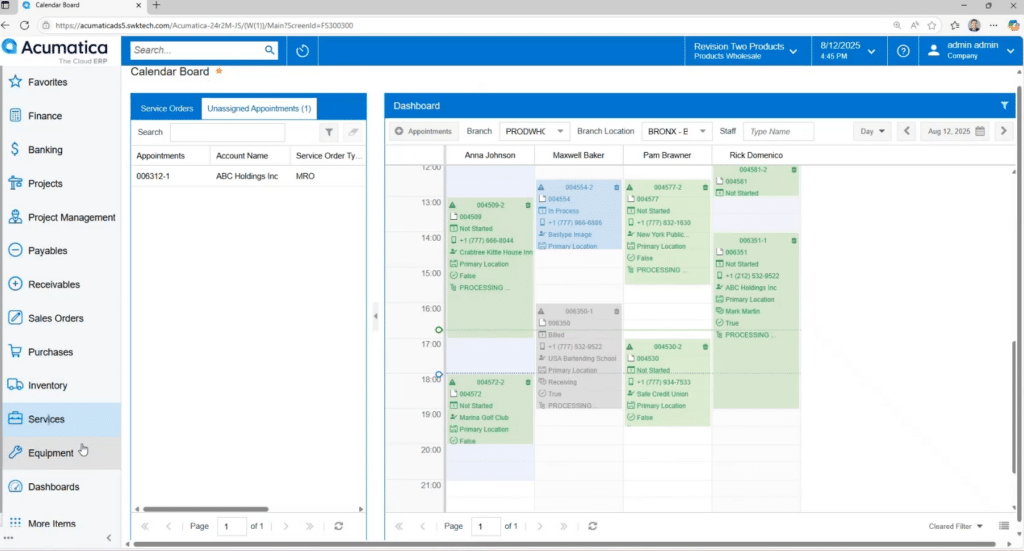
Once appointments exist, they appear on the Appointments list under the Services menu. Each one carries the contract number, the customer, the estimated duration and a billable amount of zero — the visits are covered under the prepaid contract, not invoiced per call. The calendar board shows unscheduled appointments in a queue alongside the technician calendars. Dragging one onto a technician’s row assigns it. From there the appointment behaves like any other service call — reschedule, reassign or add notes as the day requires.
Running Service Contract Billing
Billing sits under its own screen: Run Service Contract Billing, under the Equipment module. The screen lists every contract eligible to be invoiced through a chosen date. Selecting a contract and clicking Process creates the AR invoice — a single $750 invoice for the ABC Holdings example or multiple invoices for a contract billed per visit. Like appointment generation, the billing screen can be scheduled to run on its own at the close of each month, so invoices are created without anyone having to remember to trigger them.
The resulting invoice lands in the Receivables module and follows the standard AR approval workflow. If the instance is configured for approval sign-off, the invoice sits On Hold until the reviewer releases it. Once released, it can be emailed to the customer directly, with an optional click-to-pay link included.
Get Support for Acumatica Field Service with SWK Technologies
SWK Technologies has helped businesses across different industries successfully implement and leverage cloud ERP to optimize field service operations. Whether the need is standing up service contracts for the first time, redesigning a dispatch workflow or connecting billing to deferred revenue recognition, our team of experts can help empower your team to get more out of your business management software.
Contact SWK here to see how Acumatica Service Management fits your business needs and discover how we can help you capture peace of mind over your recurring service commitments.