
• Skip to main content
  • Skip to header right navigation
  • Skip to site footer
  • X
  • Facebook
  • YouTube
  • LinkedIn
Screen Connect
Support
Customer Portal
Pay Online
SWK logo.

SWK Technologies

Software Solutions & Services

  • Accounting & ERP Software
      • Acumatica Cloud ERP
        • Overview
        • Construction
        • Distribution
        • Field Service
        • Financial Management
        • Manufacturing
        • Professional Services
        • Project Accounting
        • Retail-Commerce
      • Sage Intacct
        • Overview
        • Construction and Real Estate (CRE)
        • Distribution Operations for Sage Intacct
        • Financial Services
        • Healthcare
        • Manufacturing Operations for Sage Intacct
        • Nonprofits
        • Professional Services
        • Sage Intacct Payroll powered by ADP
      • Sage 100
        • Overview
        • Business Intelligence
        • Core Accounting & Financials
        • Distribution
        • Manufacturing
        • Payroll
        • Sage 100 Contractor
      • More Accounting Products
        • QuickBooks
        • Sage 50
        • Sage 300
        • Sage 500
        • Sage BusinessWorks
      • ERP Add-ons
        • ADP Workforce Now
        • Altec
        • Avalara
        • AvidXchange
        • BigCommerce
        • CIMCloud
        • Cloud Hosting
        • DataSelf
        • Fortis
        • FreightPOP
        • Lumber
        • Microsoft 365
        • Netstock
        • Ottimate
        • Quadient
        • Sage Fixed Assets
        • Sage HRMS
        • Sage Intacct Payroll powered by ADP
        • Savant WMS
        • Endpoint Automation Solutions (FKA Scanco)
        • ScanForce
        • Solver
        • SPS Commerce
        • Velixo
        • Workforce Go!
      • More ERP Add-ons
        • Bizinsight
        • Concur
        • Crystal Reports
        • Fraxion
        • Fusion RMS
        • FYISoft
        • JobOps
        • KnowledgeSync
        • Lockstep Collect
        • Nectari
        • Pacejet
        • Planning Maestro
        • Sage CRM
        • Sage Intelligence
        • Sage Supply Chain Intelligence
        • Scissortail HCM
        • Service Pro
        • ShipStation
        • Shopify
        • Starship
        • Sugar CRM
        • Time & Billing Pro
        • Timekeeper
        • True Sky
      • Industries
        • Construction
        • Distribution
        • Financial Services
        • Healthcare
        • Manufacturing
        • Nonprofit
        • Professional Services
        • Retail
  • Managed Cloud Services
      • Managed IT Services
        • Managed Cloud Services
        • Network Assurance Core
        • Email Hosting
        • IT Support
        • Microsoft 365 Services
        • Server Monitoring
        • Virtualization
      • Cybersecurity
          • CyberAssurance CORE™
          • Cybersecurity Solutions
          • Backup & Continuity
          • Dark Web Monitoring
          • EDR
          • Encryption
          • MFA
          • Penetration Testing
          • Security Training
          • Spam & Virus Filtering
          • vCIO
          • Vulnerability Assessment
      • Cloud Services
        • Cloud Hosting
        • Infrastructure-as-a-Service
        • Acumatica IaaS
      • Industries
        • Financial Services
        • Healthcare
        • Construction
      • Locations
          • Nationwide
          • Austin
          • California
          • Chicago
          • Minneapolis
          • New Jersey
          • New York
          • North Carolina
          • Philadelphia
          • Phoenix
          • San Diego
          • Seattle
  • Consulting & Implementation
    • Business Technology Consulting
    • eCommerce
    • Financing
    • Human Capital Management
    • Managed Cloud & IT Services
    • Partner Program
    • Software Development
    • Software Implementation
  • Resources
    • Help Desk
    • Blog Posts
    • Payments Portal
    • Webinars
    • YouTube Channels
    • Acumatica Resources
    • Sage Intacct Resources
    • Sage 100 Resources
    • IT Resource Pages
  • About
    • About SWK
    • Awards & Recognition
    • Life@SWK
    • Careers
    • Success Stories
    • SWK Gives
  • Contact
    • Contact Us
    • Support
    • Our Locations

How to Use Recurring Journal Entries in Sage Intacct

March 17, 2026 by Hector

Home » Sage Intacct » How to Use Recurring Journal Entries in Sage Intacct

Rimee Jain

Sage Intacct Consultant

SWK Technologies, Inc.

If your finance team manually enters the same journal entry every month — rent, prepaid amortization, a fixed accrual — you already know the routine: pull up last period’s entry, re-enter the same accounts and amounts, hope nothing gets missed during a busy close. Sage Intacct’s recurring journal entry feature eliminates that cycle entirely. By defining an entry once and scheduling it to post automatically, your team can redirect that time toward analysis and oversight instead of repetitive data entry.

This guide covers what recurring journal entries are, who can use them, how to configure and manage them and best practices for keeping your Sage Intacct general ledger clean and audit-ready:

What are Recurring Journal Entries?

A recurring journal entry is similar to a standard journal entry but is posted automatically on a predefined schedule. You can also configure entries to auto reverse at a designated time you just define the schedule and the system handles the rest.

From the Recurring Journal Entries list, users can:

  • See all defined recurring entries for your organization
  • Track the next scheduled posting date
  • Drill down to view transactions generated by each recurring entry

Who Can Use Sage Intacct Recurring Journal Entries?

To access and manage recurring journal entries in Sage Intacct, users must meet two requirements:

  • Active General Ledger subscription — recurring journal entries are a General Ledger module feature
  • Appropriate permissions — specifically, Journal Entries: List and View, and Recurring Journal Entries: List and View

Administrators can verify and assign these permissions through the role-based access controls in Sage Intacct. Users without the proper subscription or permissions will not see the Recurring option in the General Ledger navigation.

Navigating to Recurring Journal Entries in Sage Intacct

From within Sage Intacct, navigate to:

General Ledger > All > Journal Entries > Recurring

From this list, you can see all recurring entries defined for your organization, track the next scheduled posting date for each and drill down into the transactions that have already been generated by a given entry.

How to Add a New Recurring Journal Entry

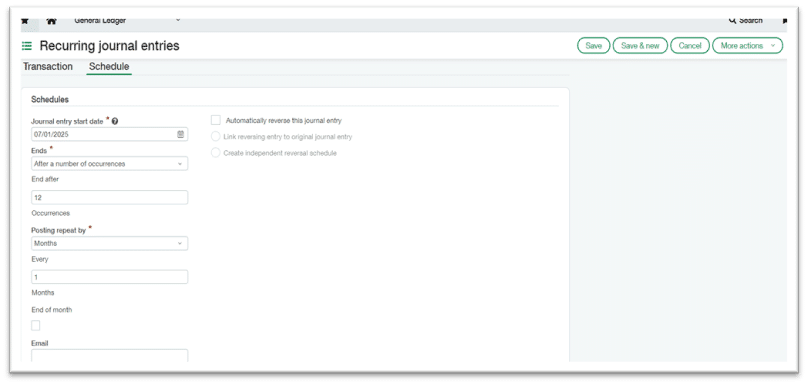
Click Add to create a new recurring entry. A form will appear with multiple fields complete all required fields under both the Transaction and Schedule tabs as shown in the screenshot below.
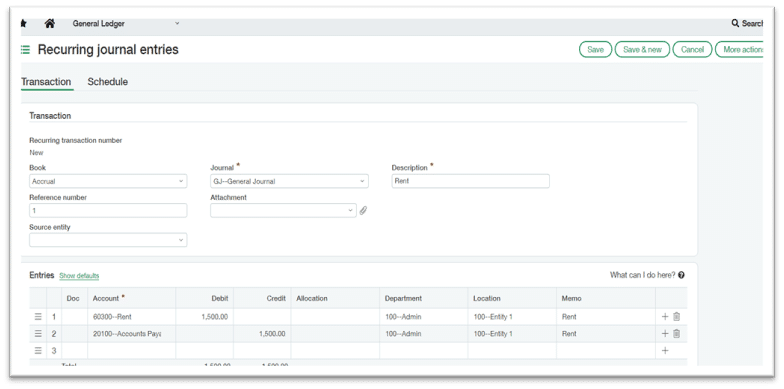
Sage Intacct recurring journal entries Transaction tab showing a new entry form with Book set to Accrual, Journal set to GJ–General Journal, Description set to Rent, Reference number 1, and two entry lines: a $1,500 debit to account 60300–Rent and a $1,500 credit to account 20100–Accounts Payable, both assigned to Department 100–Admin and Location 100–Entity 1.
Sage Intacct recurring journal entries Schedule tab showing configuration fields including Journal entry start date set to 07/01/2025, Ends set to "After a number of occurrences" with 12 occurrences, Posting repeat by set to Months with an interval of 1, and unchecked options for automatically reversing the journal entry with linked or independent reversal schedules.

Setting Journal Entry Schedules

The Schedule tab controls when and how often Sage Intacct posts the recurring entry. When creating a new schedule, specify the start date — the date on which the first automated posting should occur. From there, you configure the recurrence frequency (daily, weekly, monthly, quarterly, yearly) and define an end condition: either an explicit end date or a set number of occurrences.

The Schedule tab also controls automatic reversals. If your recurring entry is always reversed in the following period — a common pattern for accruals — you can configure both schedules at setup time rather than managing reversals manually each month. Two reversal options are available:

  • Link reversing entry to original: Schedules the reversal a defined number of days, weeks, or months after the original posting. Useful when the reversal is always a fixed interval after the entry.
  • Create independent reversal schedule: Creates a separate recurrence schedule for the reversing entry, using the same scheduling options available for the original. Use this when the reversal timing is not directly tied to the original posting date.

Posted Recurring Journal Entries

Once a recurring entry is active and posting, Sage Intacct maintains a clear separation between the recurring template and the individual transactions it generates.

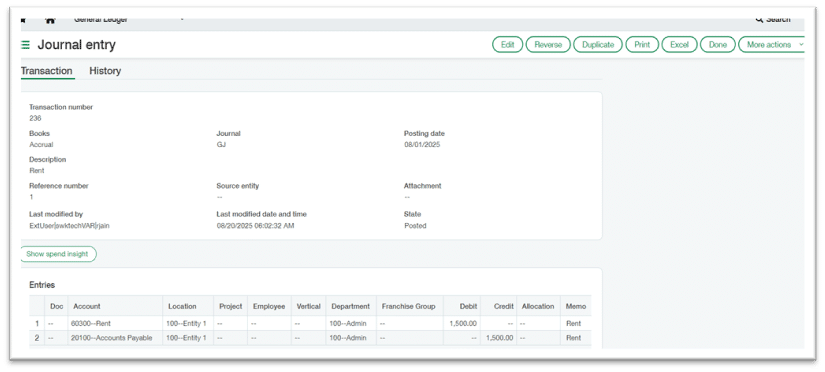
From the Recurring Journal Entries list, you can drill into any entry to see all transactions it has generated, along with their posted dates and amounts.
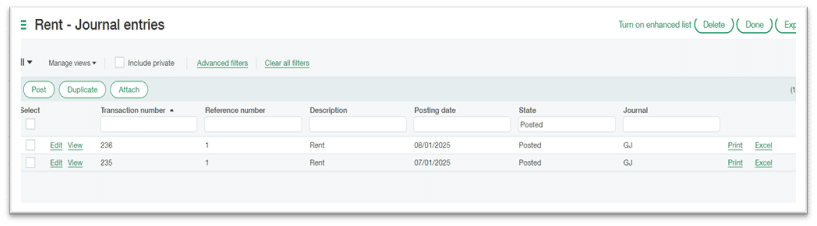
Sage Intacct journal entries list view for a recurring entry titled "Rent," showing two posted General Journal transactions — transaction 236 dated 08/01/2025 and transaction 235 dated 07/01/2025 — with options to Edit, View, Print, and Export each entry.
Sage Intacct journal entry detail view showing a posted accrual transaction (number 236) for Rent, dated 08/01/2025, with two entry lines: a $1,500 debit to account 60300–Rent and a $1,500 credit to account 20100–Accounts Payable, both assigned to Location 100–Entity 1 and Department 100–Admin.

Editing a Recurring Entry

To modify an existing recurring entry, navigate to General Ledger > All > Journal Entries > Recurring, find the entry, and select Edit. You can update fields such as department, location, amount or memo. Changes apply to future postings only — they do not affect transactions that have already been generated.

Stopping a Recurring Entry (without Deleting)

If you need to pause future postings without removing the entry from your records, set an end date on the schedule rather than deleting the template:

  1. Go to General Ledger > All > Journal Entries > Recurring
  2. Find the recurring entry and select Edit
  3. Navigate to the Schedules tab
  4. In the Ends field, confirm End date is selected
  5. In the End on field, enter the current date
  6. Select Save

Deleting a Recurring Entry

Deleting a recurring entry template stops all future postings from that template. It does not delete journal entry transactions that were previously created — those remain in the general ledger. If corrections to prior postings are needed, they must be addressed by reversing or deleting the individual posted entries based on your system permissions and internal controls.

  • Go to General Ledger > All > Journal Entries > Recurring
  • Find the recurring journal entry
  • Select Delete

Streamline Your Sage Intacct Workflows with SWK Technologies

SWK Technologies will help you gain the best value out of your Sage Intacct investment and ensure your workflows, automations and configurations align with your business goals. Whether you are looking to streamline your month-end close, improve reporting visibility or optimize how your GL is structured, we have the expertise and resources to guide you through the process.

Contact SWK today to see more of Sage Intacct firsthand and discover how this modern cloud accounting system can help you streamline your financial operations.

Contact Us Here

Category: Sage Intacct, Accounting, Blog, Tips and Tricks, Training

Sidebar

Recent Posts

  • How to Use Recurring Journal Entries in Sage Intacct
  • How to Use Auto Generate Invoices in Sage 100
  • How the CCPA Audit Rule Affects SMBs in 2026
  • Cybersecurity Training – Why You Need More Than a Checkbox
  • How to Set Up AI Studio in Acumatica 2025 R2
  • A Brief History of the Dark Web
  • How to Combine Reporting Areas in Sage Intacct ICRW

Categories

Ready to take the next step?

Contact SWK today to get in touch with one of our experts. We’ll go over your business challenges and unique needs, and see where you can unlock new value from your technology and make your operations run easier.

Get in touch!

Our Latest Posts

Sage Intacct recurring journal entries Transaction tab showing a new entry form with Book set to Accrual, Journal set to GJ–General Journal, Description set to Rent, Reference number 1, and two entry lines: a $1,500 debit to account 60300–Rent and a $1,500 credit to account 20100–Accounts Payable, both assigned to Department 100–Admin and Location 100–Entity 1.

How to Use Recurring Journal Entries in Sage Intacct

Read moreHow to Use Recurring Journal Entries in Sage Intacct
Sage 100 Auto Generate Invoices Selection screen showing the Order Type dropdown expanded with "Standard/Back Orders" and "Repeating Orders" options, selection criteria fields including Sales Order Number, Sales Order Date, Customer Number, Salesperson, Cycle Code, Ship Date, and Promise Date set to 2/24/2025, and checkboxes for Ship Invoice Complete, Select Orders on Hold, and Only Select Jobs with Status of Open.

How to Use Auto Generate Invoices in Sage 100

Read moreHow to Use Auto Generate Invoices in Sage 100
California state flag on the left and United States flag on the right flying side by side on separate poles against a clear blue sky, representing the updates to the CCPA in 2026.

How the CCPA Audit Rule Affects SMBs in 2026

Read moreHow the CCPA Audit Rule Affects SMBs in 2026

Awards and Accreditations

Top work places in NJ 2020.
Acumatica the Cloud ERP gold certified partner.
The Gold Microsoft partner logo on a black background.
Sage business partner diamond logo.
Dell Technologies Gold Partner
Sage tech partner logo.

Stay in the know!

Subscribe for exclusive ERP, process automation, IT and cybersecurity news.

Twitter
  • Facebook
  • YouTube
  • LinkedIn

Home
About
Contact

Support
Screen Connect
Pay Online
Downloads

SWK logo.

Headquarters:
120 Eagle Rock Ave, Suite 330
East Hanover, NJ 07936

Contact:
info@swktech.com
(877) 979-5462

Copyright © 2026 · SWK Technologies, Inc. · All Rights Reserved · Terms of Use · Privacy Policy

This site uses cookies to collect information about your browsing activities in order to provide you with more relevant content and promotional materials, and help us understand your interests and enhance the site. By continuing to browse this site you agree to the use of cookies. Visit our privacy policy to learn more.