
The consulting team at SWK Technologies has put together this walkthrough of the full sales order to invoice creation sequence in Acumatica Cloud ERP, from a blank order form through carrier selection, picking, invoicing and the posted journal entry. Continue reading below for a step-by-step demo of processing an order for stocked items with a bulk discount and rate-shopped ground freight, using the same path a distributor would run in production:
Starting Point in the Sales Orders Module
You begin from the customer view dashboard and open the Sales Orders module, then go to Transactions and select Sales Orders. What loads is the master sales order record, showing every completed, open, closed and canceled order in the company. You can open any individual record from this screen to see what was ordered, when it was ordered and for how much.
To create a new one, you click the plus icon at the top of the page, which opens a blank sales order form. This is the Sales Orders (SO301000) form, and it is the entry point for standard SO type orders regardless of whether the order came in by phone, by email or from a connected commerce channel.
The Order Header
The top section of the form is the header. The order type defaults to SO for sales order, and next to it sits the customer field. If you know the customer, you can type the name directly. If you do not, the hourglass icon opens a full dropdown list of every customer in your database. Selecting one and hitting select prepopulates the location and the contact information without further input from you.
The description field that follows is yours to define according to however your team already labels orders, and whatever you enter carries forward onto the invoice later in the sequence. The walkthrough uses a plain description of an order for laptops, which is enough to follow the record through to the general ledger.
Line Items and Discount Rules
Once the header is complete, you move down to the details section, where the line items live. The fastest route is the Add Items button, which opens an inventory lookup window listing all inventory available to you. Checking the box next to an item and hitting Add and Close prepopulates the branch, the inventory ID, the description, the quantity and the unit price in one action. Pricing on those lines responds to whatever discount rules you have configured, and those rules can be set against individual items, against specific customers or against vendors.
Below the line items, the screen shows on hand and available for shipping quantities, so the increase to five units is confirmed against the ten units available before you go any further. That availability check is the same real-time data Acumatica uses to warn a user when a quantity is unavailable or over-allocated, and it is also what drives the credit limit verification that runs against the customer before release.
Carrier Rate Shopping from the Sales Order
You do not have to leave the sales order to price the freight. The Shipping tab holds a Delivery Settings section with a Shop for Rates button, and clicking it opens a rate window. Hitting Refresh Rates pulls current pricing for every shipping method available for that specific product and shipment, running against the direct carrier integrations Acumatica maintains with FedEx, UPS and USPS.
What comes back is a comparison rather than a single quote. Options marked with a red X are unavailable, which for a domestic shipment rules out the international methods, and the remaining list spans overnight, two-day and ground service across carriers with an amount, a transit time and an expected delivery date on each row. The same Delivery Settings section holds the options that change what a rate quote looks like in practice, including residential delivery, Saturday delivery, insurance, delivery confirmation and the ability to bill against the customer’s own carrier account.
Shipment Creation and the Pick List
With the line items entered and the carrier selected, you click Create Shipment. A window asks for a shipment date, defaulting to today with the option to schedule it forward, and confirms the warehouse ID associated with the products. Clicking okay moves you off the sales order and onto the Shipments (SO302000) form with the shipment already populated.
From the three-dot icon, you can print the pick list for the warehouse, which opens in a separate window as a PDF. The pick list carries barcodes, and Acumatica accommodates most barcode reading software you may already have on the floor, which is the same scanning path the Acumatica WMS module builds on for directed picking. You can print that list directly or email it from the same window to the warehouse location handling the pick. If your volume calls for it, pick lists can also be generated in bulk for multiple open shipments at once from the Process Shipments (SO503000) form rather than one at a time.
Shipment Confirmation, Packages and Labels
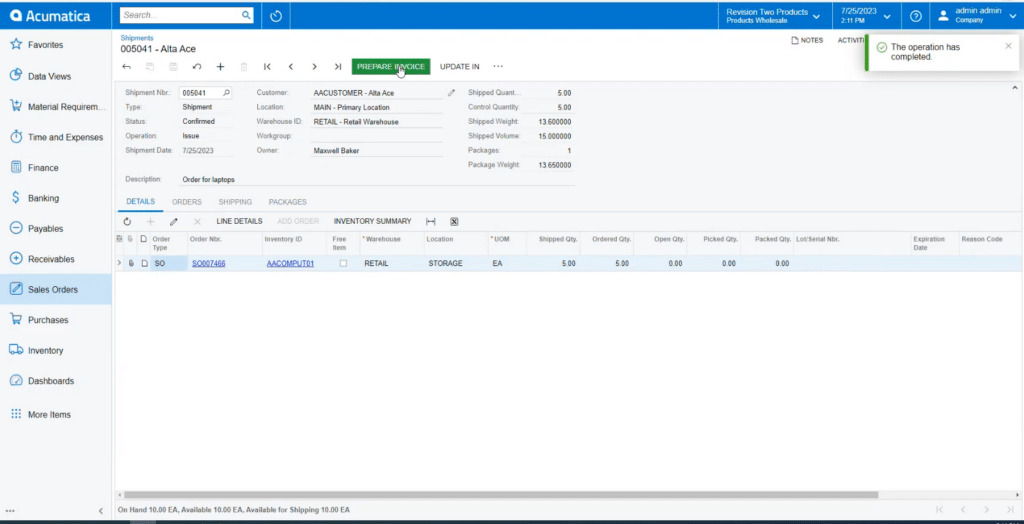
After the warehouse pulls the items, you verify the shipment number, the customer and the line items, then click Confirm Shipment. The Packages tab then shows the package going out, and an icon within it opens the generated FedEx shipping label, which you can print to a sticker printer or onto paper to tape to the box. The tracking number populates automatically in a field on the right side of the screen.
Invoice Preparation and Delivery
From the confirmed shipment, the green Prepare Invoice button takes you to the invoice form. The document carries the type, the same customer information, the credit terms, the due date, the description and the details of the order. The same action is available under Actions on the Shipments form, and it can be run across multiple selected shipments from Process Shipments when you are invoicing a day’s worth of fulfillment at once.
The three-dot menu gives you print and email. Printing opens a new tab with a PDF of the invoice showing your company information, the customer information, the shipment number and order, the item numbers and the shipping method selected earlier. Emailing opens a message with the customer address prepopulated, an auto-generated body and the invoice attached, and you can configure as many recipients or copied addresses as the account requires.
Invoice Release and the General Ledger
Clicking Release posts the entries to every general ledger account implicated for that customer and makes the invoice payable under the credit terms on the document. The Financial tab then lists links to each account affected, starting with the accounts receivable (AR) account, and the hyperlink under the batch number opens the general ledger record itself.
What you see in that record is the full double entry the documents produced, with the header at the top and the affected accounts in the details below. The accounts, the subaccounts and the split between revenue and freight follow whatever posting configuration your chart of accounts already uses. From the same record you can view the source document, which is the invoice you just created, and print it if you need a copy of the file.
Order Status After Release
Releasing the invoice also settles what happens to the original order. An order shipped in full moves to Completed status. An order shipped partially moves to Back Order status and stays open for additional shipments, and you can track exactly where it stands through the Shipped Qty. and Open Quantity columns on the order details.
Across that sequence you created the sales order, priced and selected the carrier, created and picked the shipment, printed the label and generated, sent and released the invoice. Every step fed the next one without re-keying customer data, item data or freight costs, and the general ledger entries wrote themselves from the documents that produced them.
Discover More Demos for Acumatica
SWK Technologies is a Gold-level Acumatica VAR and four-time Partner of the Year with certified consultants ready to help you configure order types, discount rules and carrier integration around the way your business actually fulfills orders. Check out some of our Acumatica videos and other educational resources, and reach out to us when you’re ready to learn more tips and tricks to maximize your value return on your software.
Contact SWK here to see the sales order to invoice process mapped to your own workflows and get started today.