
Rimee Jain
Sage Intacct Consultant
SWK Technologies, Inc.
If your finance team manually enters the same journal entry every month — rent, prepaid amortization, a fixed accrual — you already know the routine: pull up last period’s entry, re-enter the same accounts and amounts, hope nothing gets missed during a busy close. Sage Intacct’s recurring journal entry feature eliminates that cycle entirely. By defining an entry once and scheduling it to post automatically, your team can redirect that time toward analysis and oversight instead of repetitive data entry.
This guide covers what recurring journal entries are, who can use them, how to configure and manage them and best practices for keeping your Sage Intacct general ledger clean and audit-ready:
What are Recurring Journal Entries?
A recurring journal entry is similar to a standard journal entry but is posted automatically on a predefined schedule. You can also configure entries to auto reverse at a designated time you just define the schedule and the system handles the rest.
From the Recurring Journal Entries list, users can:
- See all defined recurring entries for your organization
- Track the next scheduled posting date
- Drill down to view transactions generated by each recurring entry
Who Can Use Sage Intacct Recurring Journal Entries?
To access and manage recurring journal entries in Sage Intacct, users must meet two requirements:
- Active General Ledger subscription — recurring journal entries are a General Ledger module feature
- Appropriate permissions — specifically, Journal Entries: List and View, and Recurring Journal Entries: List and View
Administrators can verify and assign these permissions through the role-based access controls in Sage Intacct. Users without the proper subscription or permissions will not see the Recurring option in the General Ledger navigation.
Navigating to Recurring Journal Entries in Sage Intacct
From within Sage Intacct, navigate to:
General Ledger > All > Journal Entries > Recurring
From this list, you can see all recurring entries defined for your organization, track the next scheduled posting date for each and drill down into the transactions that have already been generated by a given entry.
How to Add a New Recurring Journal Entry
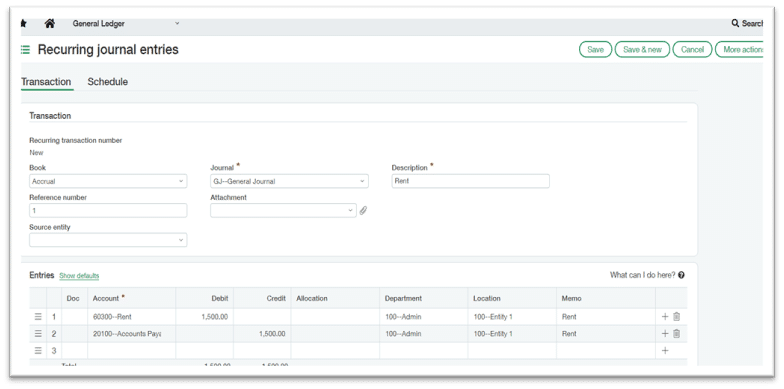
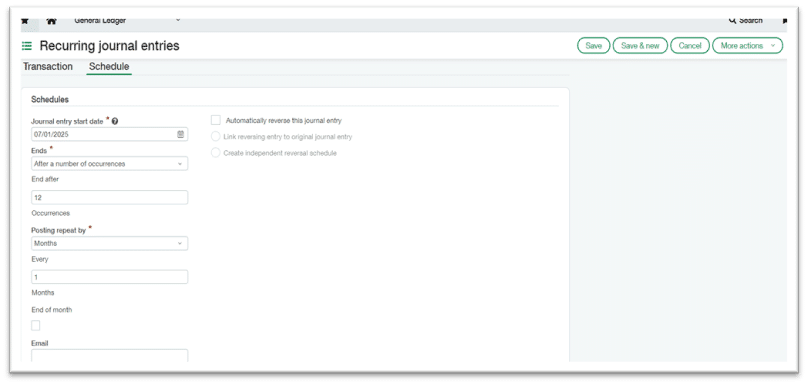
Click Add to create a new recurring entry. A form will appear with multiple fields complete all required fields under both the Transaction and Schedule tabs as shown in the screenshot below.
Setting Journal Entry Schedules
The Schedule tab controls when and how often Sage Intacct posts the recurring entry. When creating a new schedule, specify the start date — the date on which the first automated posting should occur. From there, you configure the recurrence frequency (daily, weekly, monthly, quarterly, yearly) and define an end condition: either an explicit end date or a set number of occurrences.
The Schedule tab also controls automatic reversals. If your recurring entry is always reversed in the following period — a common pattern for accruals — you can configure both schedules at setup time rather than managing reversals manually each month. Two reversal options are available:
- Link reversing entry to original: Schedules the reversal a defined number of days, weeks, or months after the original posting. Useful when the reversal is always a fixed interval after the entry.
- Create independent reversal schedule: Creates a separate recurrence schedule for the reversing entry, using the same scheduling options available for the original. Use this when the reversal timing is not directly tied to the original posting date.
Posted Recurring Journal Entries
Once a recurring entry is active and posting, Sage Intacct maintains a clear separation between the recurring template and the individual transactions it generates.
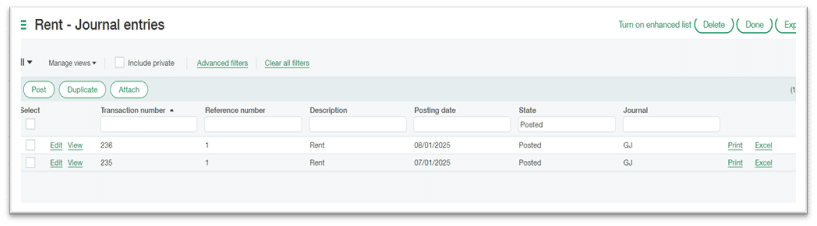
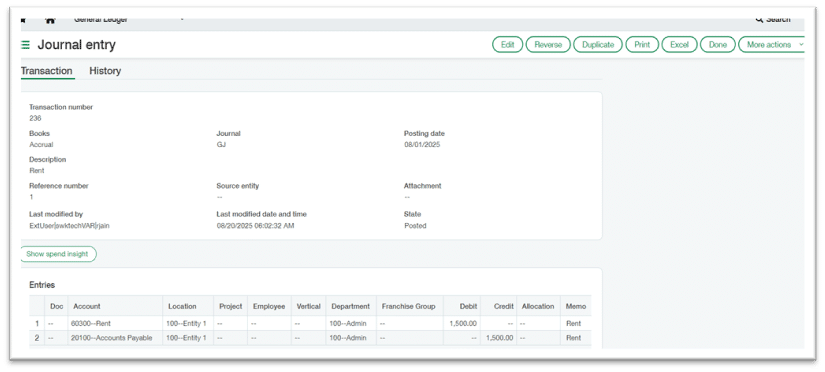
From the Recurring Journal Entries list, you can drill into any entry to see all transactions it has generated, along with their posted dates and amounts.
Editing a Recurring Entry
To modify an existing recurring entry, navigate to General Ledger > All > Journal Entries > Recurring, find the entry, and select Edit. You can update fields such as department, location, amount or memo. Changes apply to future postings only — they do not affect transactions that have already been generated.
Stopping a Recurring Entry (without Deleting)
If you need to pause future postings without removing the entry from your records, set an end date on the schedule rather than deleting the template:
- Go to General Ledger > All > Journal Entries > Recurring
- Find the recurring entry and select Edit
- Navigate to the Schedules tab
- In the Ends field, confirm End date is selected
- In the End on field, enter the current date
- Select Save
Deleting a Recurring Entry
Deleting a recurring entry template stops all future postings from that template. It does not delete journal entry transactions that were previously created — those remain in the general ledger. If corrections to prior postings are needed, they must be addressed by reversing or deleting the individual posted entries based on your system permissions and internal controls.
- Go to General Ledger > All > Journal Entries > Recurring
- Find the recurring journal entry
- Select Delete
Streamline Your Sage Intacct Workflows with SWK Technologies
SWK Technologies will help you gain the best value out of your Sage Intacct investment and ensure your workflows, automations and configurations align with your business goals. Whether you are looking to streamline your month-end close, improve reporting visibility or optimize how your GL is structured, we have the expertise and resources to guide you through the process.
Contact SWK today to see more of Sage Intacct firsthand and discover how this modern cloud accounting system can help you streamline your financial operations.