
• Skip to main content
  • Skip to header right navigation
  • Skip to site footer
  • X
  • Facebook
  • YouTube
  • LinkedIn
Screen Connect
Support
Customer Portal
Pay Online
SWK logo.

SWK Technologies

Software Solutions & Services

  • Accounting & ERP Software
      • Acumatica Cloud ERP
        • Overview
        • Construction
        • Distribution
        • Field Service
        • Financial Management
        • Manufacturing
        • Professional Services
        • Project Accounting
        • Retail-Commerce
      • Sage Intacct
        • Overview
        • Construction and Real Estate (CRE)
        • Distribution Operations for Sage Intacct
        • Financial Services
        • Healthcare
        • Manufacturing Operations for Sage Intacct
        • Nonprofits
        • Professional Services
        • Sage Intacct Payroll powered by ADP
      • Sage 100
        • Overview
        • Business Intelligence
        • Core Accounting & Financials
        • Distribution
        • Manufacturing
        • Payroll
        • Sage 100 Contractor
      • More Accounting Products
        • QuickBooks
        • Sage 50
        • Sage 300
        • Sage 500
        • Sage BusinessWorks
      • ERP Add-ons
        • ADP Workforce Now
        • Altec
        • Avalara
        • AvidXchange
        • BigCommerce
        • CIMCloud
        • Cloud Hosting
        • DataSelf
        • Fortis
        • FreightPOP
        • Lumber
        • Microsoft 365
        • Netstock
        • Ottimate
        • Quadient
        • Sage Fixed Assets
        • Sage HRMS
        • Sage Intacct Payroll powered by ADP
        • Savant WMS
        • Endpoint Automation Solutions (FKA Scanco)
        • ScanForce
        • Solver
        • SPS Commerce
        • Velixo
        • Workforce Go!
      • More ERP Add-ons
        • Bizinsight
        • Concur
        • Crystal Reports
        • Fraxion
        • Fusion RMS
        • FYISoft
        • JobOps
        • KnowledgeSync
        • Lockstep Collect
        • Nectari
        • Pacejet
        • Planning Maestro
        • Sage CRM
        • Sage Intelligence
        • Sage Supply Chain Intelligence
        • Scissortail HCM
        • Service Pro
        • ShipStation
        • Shopify
        • Starship
        • Sugar CRM
        • Time & Billing Pro
        • Timekeeper
        • True Sky
      • Industries
        • Construction
        • Distribution
        • Financial Services
        • Healthcare
        • Manufacturing
        • Nonprofit
        • Professional Services
        • Retail
  • Managed Cloud Services
      • Managed IT Services
        • Managed Cloud Services
        • Network Assurance Core
        • Email Hosting
        • IT Support
        • Microsoft 365 Services
        • Server Monitoring
        • Virtualization
      • Cybersecurity
          • CyberAssurance CORE™
          • Cybersecurity Solutions
          • Backup & Continuity
          • Dark Web Monitoring
          • EDR
          • Encryption
          • MFA
          • Penetration Testing
          • Security Training
          • Spam & Virus Filtering
          • vCIO
          • Vulnerability Assessment
      • Cloud Services
        • Cloud Hosting
        • Infrastructure-as-a-Service
        • Acumatica IaaS
      • Industries
        • Financial Services
        • Healthcare
        • Construction
      • Locations
          • Nationwide
          • Austin
          • California
          • Chicago
          • Minneapolis
          • New Jersey
          • New York
          • North Carolina
          • Philadelphia
          • Phoenix
          • San Diego
          • Seattle
  • Consulting & Implementation
    • Business Technology Consulting
    • eCommerce
    • Financing
    • Human Capital Management
    • Managed Cloud & IT Services
    • Partner Program
    • Software Development
    • Software Implementation
  • Resources
    • Help Desk
    • Blog Posts
    • Payments Portal
    • Webinars
    • YouTube Channels
    • Acumatica Resources
    • Sage Intacct Resources
    • Sage 100 Resources
    • IT Resource Pages
  • About
    • About SWK
    • Awards & Recognition
    • Life@SWK
    • Careers
    • Success Stories
    • SWK Gives
  • Contact
    • Contact Us
    • Support
    • Our Locations

How to Use Auto Generate Invoices in Sage 100

March 12, 2026 by Hector

Home » Sage 100 » How to Use Auto Generate Invoices in Sage 100

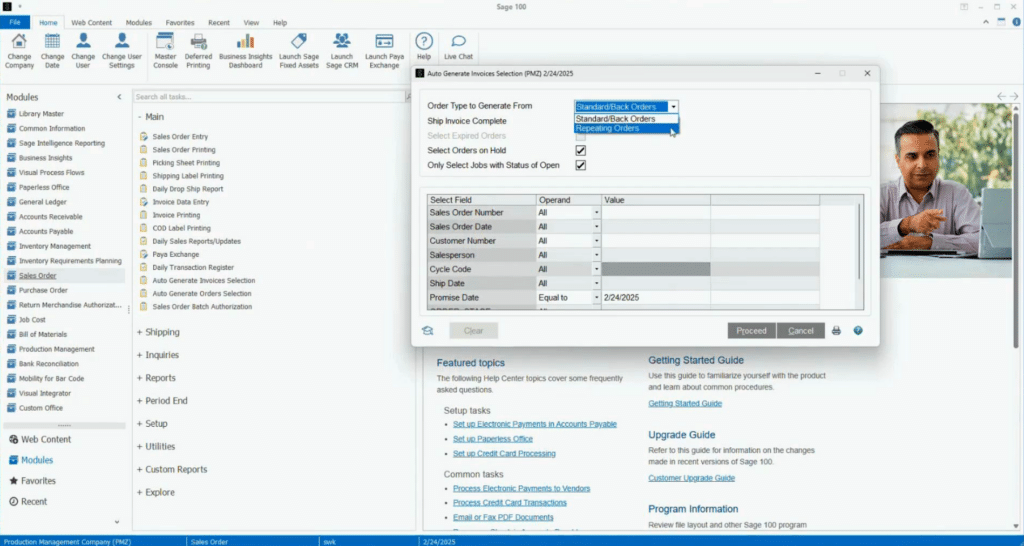
Sage 100 Auto Generate Invoices Selection screen showing the Order Type dropdown expanded with "Standard/Back Orders" and "Repeating Orders" options, selection criteria fields including Sales Order Number, Sales Order Date, Customer Number, Salesperson, Cycle Code, Ship Date, and Promise Date set to 2/24/2025, and checkboxes for Ship Invoice Complete, Select Orders on Hold, and Only Select Jobs with Status of Open.

The following is an article companion to the Sage 100 Shorts video demonstration of the Auto Generate Invoices feature, presented by SWK consultant Anthony Ross. Watch the video below or continue reading for a full written walkthrough:

What is the Auto Generate Invoices Feature in Sage 100?

If your business processes a high volume of sales orders on a daily basis, manually creating invoices one by one is a bottleneck you do not have to live with. Auto Generate Invoices allows you to automatically select and batch-generate invoices from multiple sales orders at once in Sage 100 — saving time, reducing manual entry errors and giving your team more control over the billing process.

This feature lives within the Sales Order module and offers a wide range of filtering and selection criteria, so you can target exactly the orders you need to invoice for a given day, date range, customer group or salesperson.

Step-by-Step: Using Auto Generate Invoices in Sage 100

Here is a step-by-step breakdown of how to access and use Auto Generate Invoices in Sage 100, along with a few additional tips and tricks:

Step 1: Review Your Open Sales Orders

Start by navigating to Sales Order Entry to review the orders you are working with. In the demonstration, consultant Anthony Ross works with three open sales orders (orders 35, 36, and 37). For this example, two of those orders share the same ship date and are ready to be invoiced — the third is intentionally left out of the selection.

This step highlights one of the core benefits of the feature: you do not have to process every open order at once. Auto Generate Invoices gives you the tools to be selective.

Step 2: Navigate to Auto Generate Invoices Selection

Once you have reviewed your orders, exit Sales Order Entry and navigate to:

  • Sales Order → Main → Auto Generate Invoices Selection

This opens the selection criteria panel, where you will define the parameters for your invoice batch.

Step 3: Set Your Selection Criteria

The Auto Generate Invoices selection screen offers several filtering options, including:

  • Sales Order Range
  • Sales Order Date
  • Ship Via
  • Customer
  • Salesperson
  • Ship Date
  • Promise Date

In this example, the filter is set by ship date — specifically targeting orders with a ship date of 2/24. This immediately narrows the batch to only the two relevant orders, excluding the third.

Pro Tip: You can combine multiple criteria to build highly targeted batches. For example, filtering by both salesperson and ship date lets you generate invoices for a specific rep’s book of business on a given day.

Step 4: Configure the Ship Order Complete Option

Before proceeding, take note of the Ship Order Complete checkbox at the top of the screen. This setting controls how ship quantities are handled when the invoice is created:

  • Checked (Ship Order Complete): Sage 100 will automatically populate the ship quantity based on the order quantity. For example, if an order line has a quantity of one, the system will enter one in the ship amount field.
  • Unchecked: The ship quantity field is left at zero, requiring manual entry. This is useful when partial shipments or manual quantity adjustments are expected.

You can also choose to include standard orders, back orders, or repeating orders in the batch depending on your needs.

NOTE: The Ship Order Complete setting applies to all orders in the batch. If you have mixed order types that require different ship quantity handling, consider running separate batches.

Step 5: Process the Selection

Once your criteria are configured, click Proceed. The system will generate a selection based on your filters — similar in concept to the invoice payment selection process on the Accounts Payable side of Sage 100.

At this point, you have the option to print a Selection Listing before generating the invoice batch. This report previews the orders included in your selection, giving you one final opportunity to confirm the batch is correct before committing.

Pro Tip: Always preview the Selection Listing before generating your invoice batch. It takes seconds and gives you a clear record of what is about to be processed — making it easy to catch anything unexpected before it hits Invoice Data Entry.

Step 6: Generate the Invoice Batch

After reviewing the Selection Listing, click to generate the invoice batch. Sage 100 will prompt you to confirm:

  • Click Yes to generate the batch.
  • Click No to clear the selection and start over if anything looks incorrect.

The system may also prompt you to confirm or adjust the next automatic invoice number. In most cases, you can accept the system-generated value and proceed.

Step 7: Review Generated Invoices in Invoice Data Entry

Once the batch is generated, navigate to Invoice Data Entry. Your invoices will be waiting — pre-populated with the correct ship quantities (if Ship Order Complete was selected) and ready for any final adjustments before posting.

In the demonstration, both target invoices were generated correctly with the appropriate ship amounts, confirming that the selection criteria and Ship Order Complete setting worked as intended.

Get More Out of Your Sage 100 Investment

The SWK Technologies team has deep expertise in Sage 100 and is ready to help your team take full advantage of the features already built into your ERP. Whether you are looking to streamline daily operations, solve a specific workflow challenge, or explore what else Sage 100 can do for your business, our consultants are here to help.

Contact SWK here to connect with a Sage 100 consultant and learn how we can empower your team to work smarter every day.

Contact Us Below

Category: Sage 100, Accounting, Blog, Tips and Tricks, Training

Sidebar

Recent Posts

  • How to Use Auto Generate Invoices in Sage 100
  • How the CCPA Audit Rule Affects SMBs in 2026
  • Cybersecurity Training – Why You Need More Than a Checkbox
  • How to Set Up AI Studio in Acumatica 2025 R2
  • A Brief History of the Dark Web
  • How to Combine Reporting Areas in Sage Intacct ICRW
  • Rooted in Growth: How Acumatica and SWK Technologies Helped a Commercial Landscaper Scale Smarter

Categories

Ready to take the next step?

Contact SWK today to get in touch with one of our experts. We’ll go over your business challenges and unique needs, and see where you can unlock new value from your technology and make your operations run easier.

Get in touch!

Our Latest Posts

Sage 100 Auto Generate Invoices Selection screen showing the Order Type dropdown expanded with "Standard/Back Orders" and "Repeating Orders" options, selection criteria fields including Sales Order Number, Sales Order Date, Customer Number, Salesperson, Cycle Code, Ship Date, and Promise Date set to 2/24/2025, and checkboxes for Ship Invoice Complete, Select Orders on Hold, and Only Select Jobs with Status of Open.

How to Use Auto Generate Invoices in Sage 100

Read moreHow to Use Auto Generate Invoices in Sage 100
California state flag on the left and United States flag on the right flying side by side on separate poles against a clear blue sky, representing the updates to the CCPA in 2026.

How the CCPA Audit Rule Affects SMBs in 2026

Read moreHow the CCPA Audit Rule Affects SMBs in 2026
Person in a dark blazer standing at a whiteboard holding a tablet, with two people seated at a table with open laptops in the foreground appearing to take notes while the former is conducting cybersecurity training.

Cybersecurity Training – Why You Need More Than a Checkbox

Read moreCybersecurity Training – Why You Need More Than a Checkbox

Awards and Accreditations

Top work places in NJ 2020.
Acumatica the Cloud ERP gold certified partner.
The Gold Microsoft partner logo on a black background.
Sage business partner diamond logo.
Dell Technologies Gold Partner
Sage tech partner logo.

Stay in the know!

Subscribe for exclusive ERP, process automation, IT and cybersecurity news.

Twitter
  • Facebook
  • YouTube
  • LinkedIn

Home
About
Contact

Support
Screen Connect
Pay Online
Downloads

SWK logo.

Headquarters:
120 Eagle Rock Ave, Suite 330
East Hanover, NJ 07936

Contact:
info@swktech.com
(877) 979-5462

Copyright © 2026 · SWK Technologies, Inc. · All Rights Reserved · Terms of Use · Privacy Policy

This site uses cookies to collect information about your browsing activities in order to provide you with more relevant content and promotional materials, and help us understand your interests and enhance the site. By continuing to browse this site you agree to the use of cookies. Visit our privacy policy to learn more.